User Interface Wireframes
Dashboard
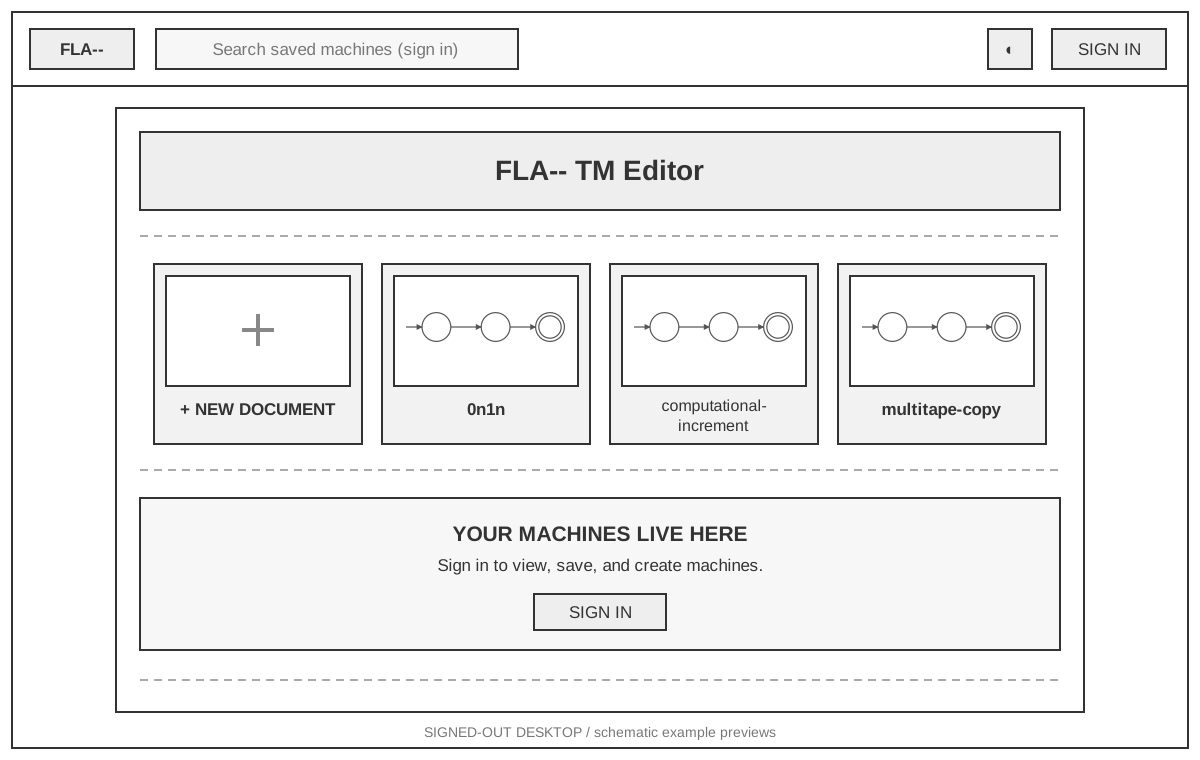
The full-width header contains Home, saved-machine search, the theme toggle, and Sign In. The centred content area contains the title, a row of document cards, and the signed-out personal-machine area. Each example card includes a diagram preview; search is disabled until sign-in.
Open full-size dashboard wireframe
Sign In
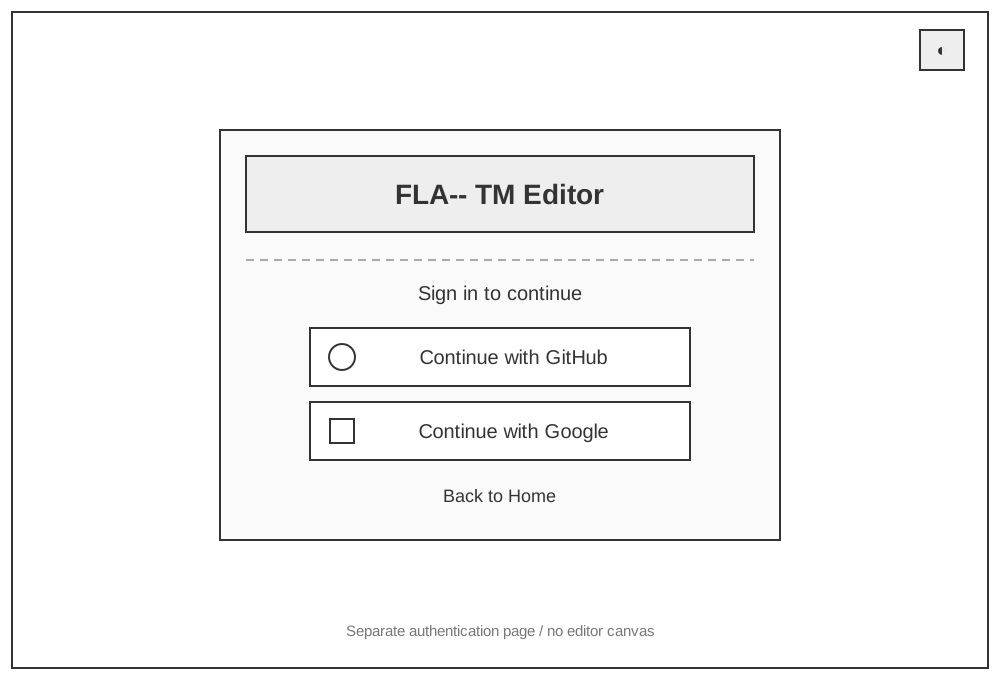
Authentication is a separate screen. The title and sign-in prompt sit above stacked GitHub and Google buttons, followed by Back to Home. The theme toggle remains at the upper right.
Open full-size sign-in wireframe
Editor Workspace
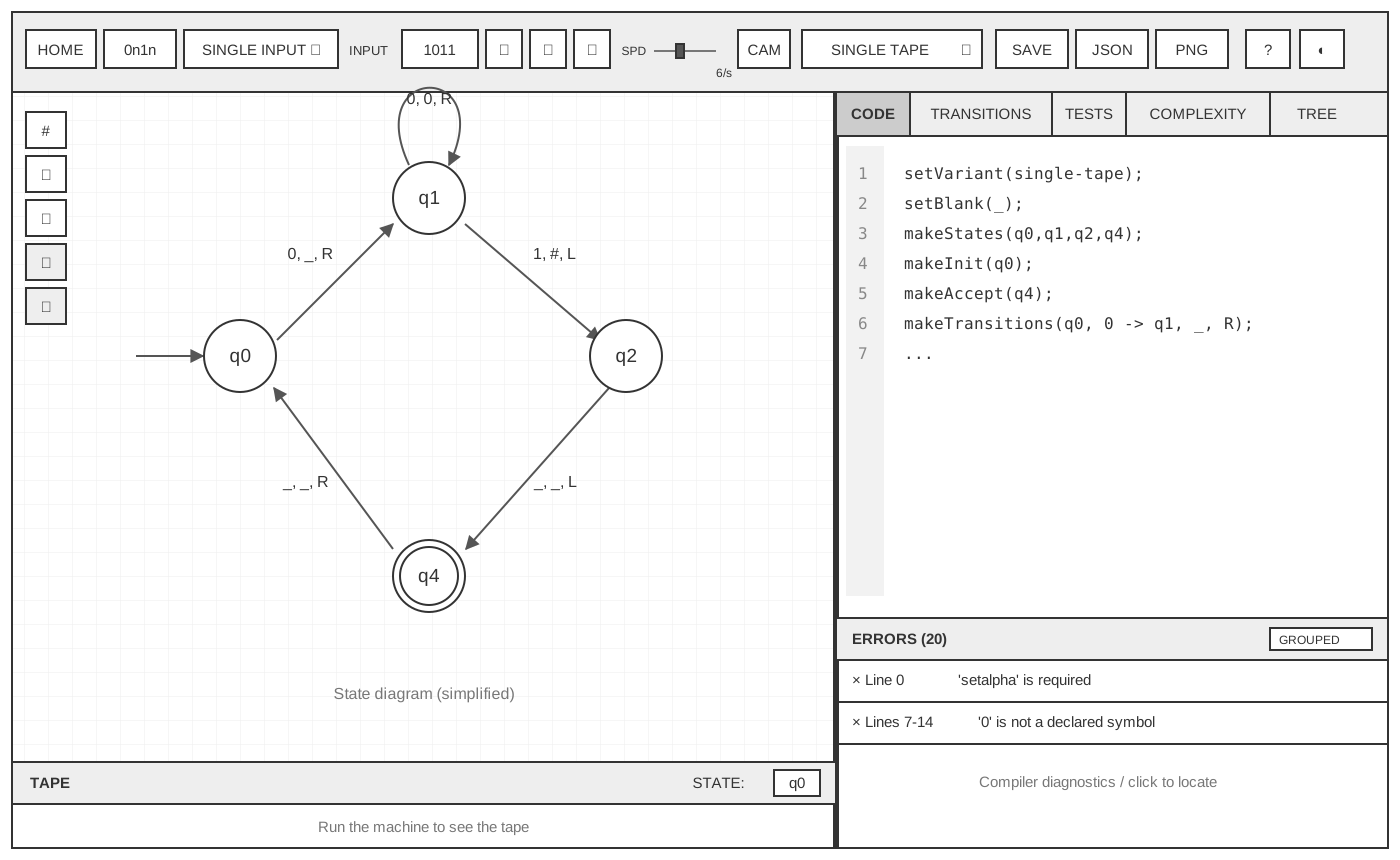
The toolbar spans the screen. The visual canvas occupies approximately 60% of the workspace and the inspector occupies the remaining 40%. The tape is directly beneath the canvas, not beneath the code panel.
Open full-size editor wireframe
- Toolbar: Home, editable machine name, input mode, input field, Run/Pause, Step, Reset, SPD, CAM, variant selector, Save, JSON, PNG, Help, and theme.
- Canvas controls: Grid, Fit to view, Reset zoom, Undo, and Redo form a vertical stack at the upper left. The sample state diagram shows a start arrow, state circles, labelled transitions, and an accept-state double ring.
- Inspector: CODE, TRANSITIONS, TESTS, COMPLEXITY, TREE, and now AI share one panel. Only the selected tab's content is displayed. The original editor sheet predates the AI tab; its new layout is shown below.
- CODE: line-numbered machine source sits above a resizable diagnostics
panel containing error counts, grouping, line references, and messages.
The public
0n1nexample currently reports compiler errors. - Tape: shows the current state and a pre-run prompt; execution replaces that prompt with tape cells and head position.
Alternate Inspector Layouts
The three panels below are alternative views of the same right-hand inspector, not three simultaneous columns in the application. The canvas and tape remain in place when switching tabs.
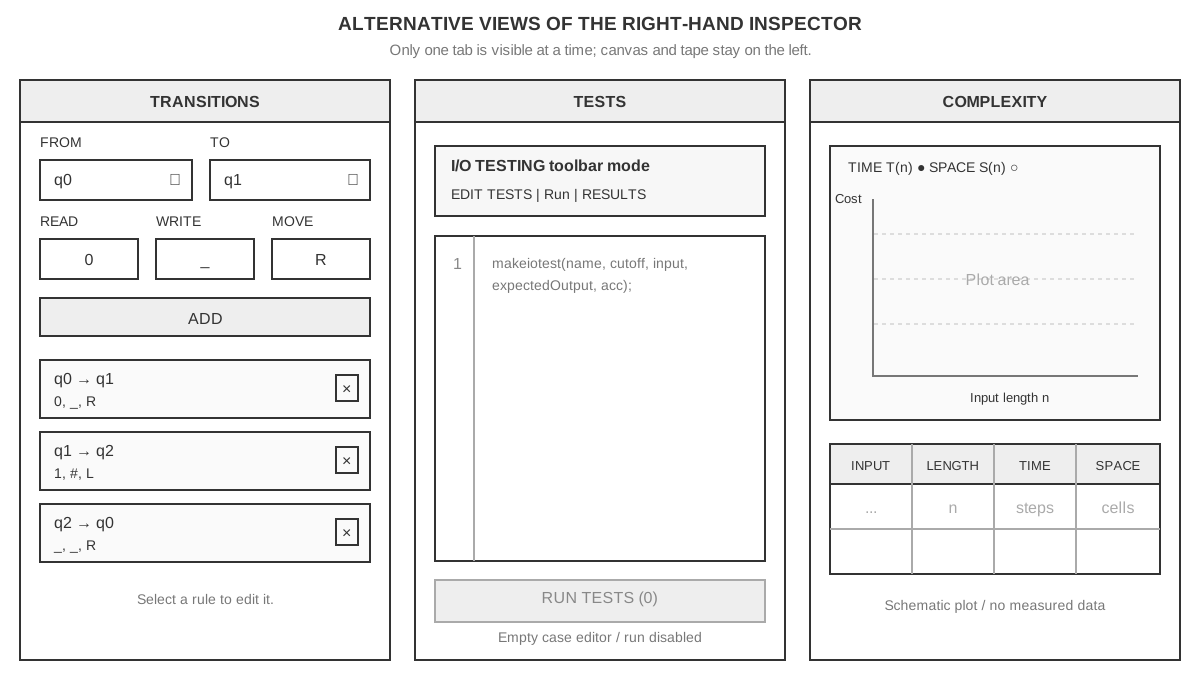
Open full-size inspector wireframes
Transitions
FROM and TO selectors sit above the READ, WRITE, and MOVE fields and the ADD button. Existing rules appear in a list beneath the form, each with a delete control. Selecting a rule loads it for editing. Multi-tape machines have a field row for each tape.
Tests
The TESTS tab contains a line-numbered test-case editor and RUN TESTS below it. The empty public example has RUN TESTS (0) disabled. In I/O TESTING mode, the toolbar replaces the single-input controls with EDIT TESTS, Run, and RESULTS. Test results appear beside cases after execution.
Complexity and Tree
COMPLEXITY contains a plot with TIME T(n) and SPACE S(n) legends, followed by an INPUT / LENGTH / TIME / SPACE table. The illustration uses schematic axes, not fabricated measurements. TREE is variant-specific: the single-tape editor shows a prompt to switch to NON-DETERMINISTIC mode.
Dialogs
Dialogs overlay the existing editor rather than navigate to another screen. The background outline below shows that the canvas, inspector, and tape stay behind the dialog.
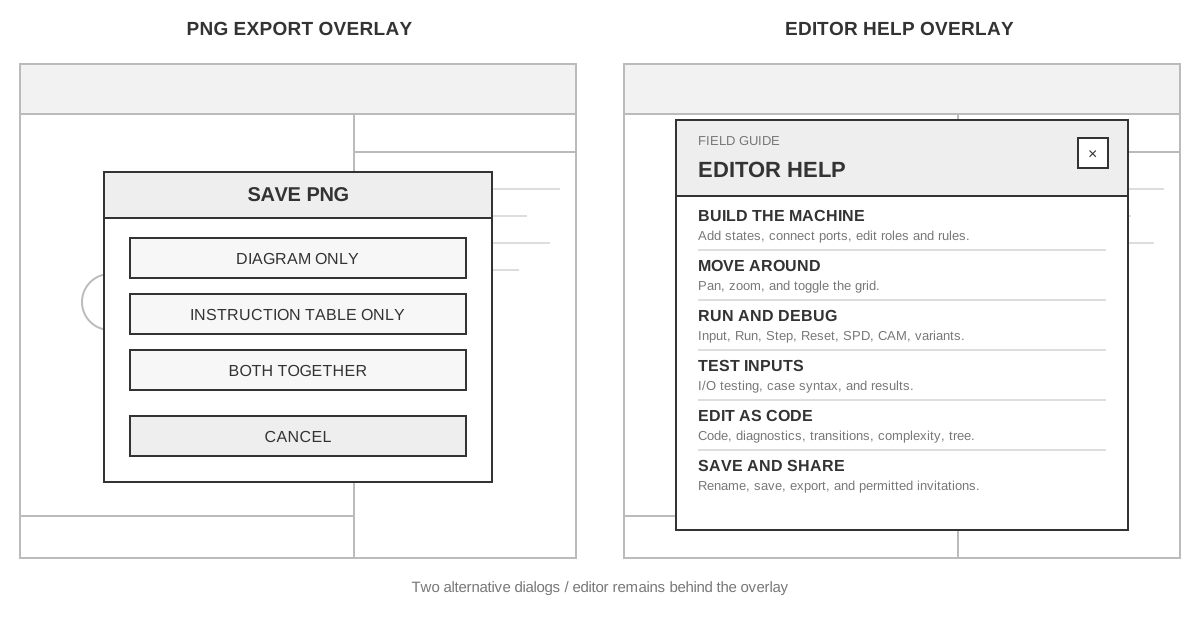
Open full-size dialog wireframes
- PNG export: DIAGRAM ONLY, INSTRUCTION TABLE ONLY, BOTH TOGETHER, and CANCEL are stacked inside a centred SAVE PNG dialog.
- Editor Help: a FIELD GUIDE / EDITOR HELP header and close button sit above six sections: Build the Machine, Move Around, Run and Debug, Test Inputs, Edit as Code, and Save and Share. The help mentions INVITE for saved machines when the user has permission; it is not present in the signed-out editor.
Problem Catalog
/problems has HOME, DAILY, CREATE PROBLEM, theme and authentication controls.
Guests see a notice that solving is allowed but account progress is not
recorded. Cards show difficulty, title, attempts and community provenance;
signed-in progress can add a cleared badge. The grid is schematic, not an
assertion about the number or titles of deployed problems.
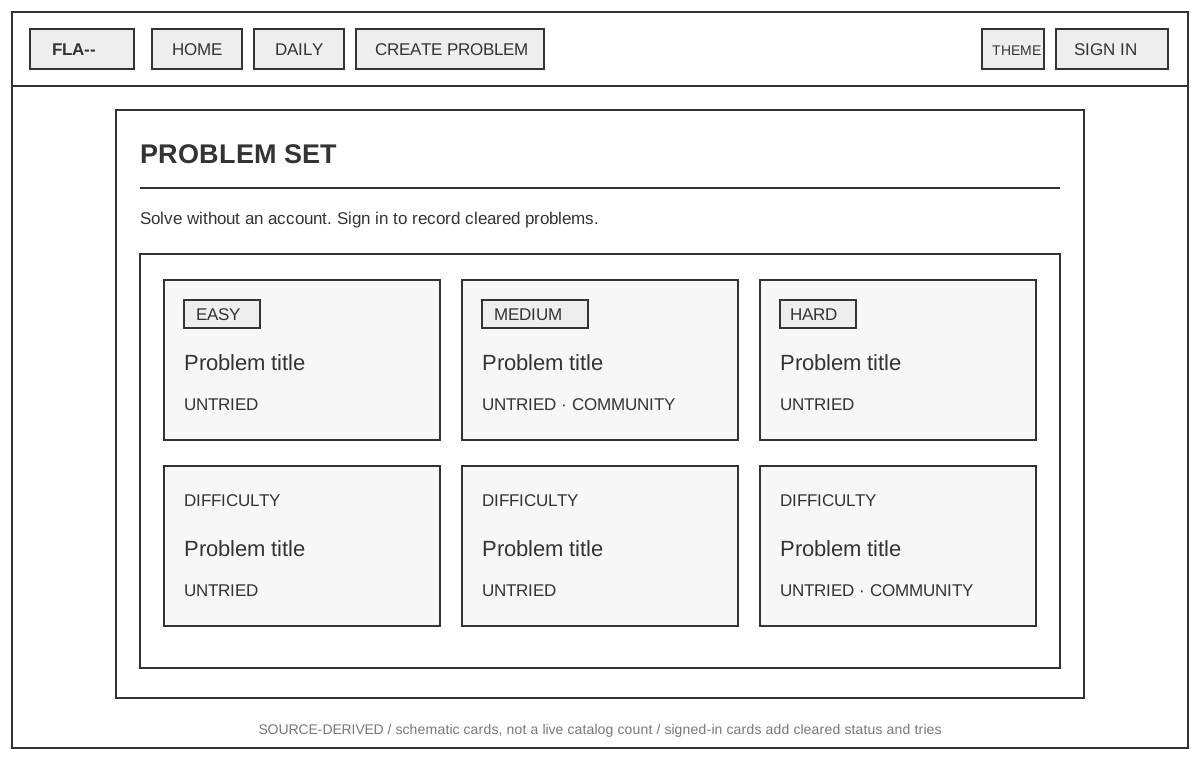
Open full-size problem catalog wireframe
Publish a Problem
/create-problem shows the form only after sign-in. Slug and title sit above
difficulty, variant and tape count. Question, optional starter DSL and test DSL
follow in a vertically scrolling form. Tests can be public or private; errors
appear above the fields and PUBLISH PROBLEM redirects to the new problem.
Guests see a sign-in gate instead of these inputs.
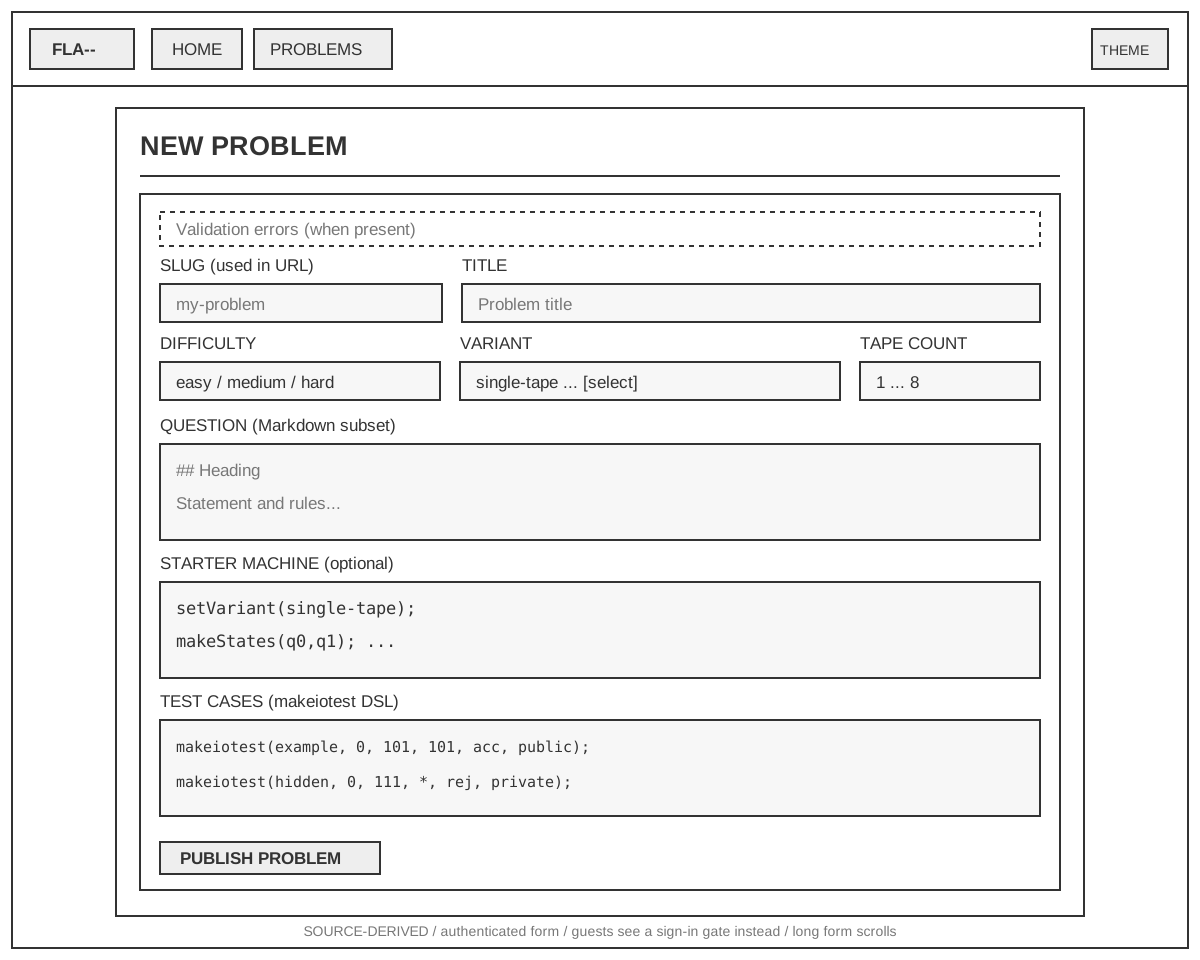
Open full-size problem publishing wireframe
Problem and Daily Build Editor
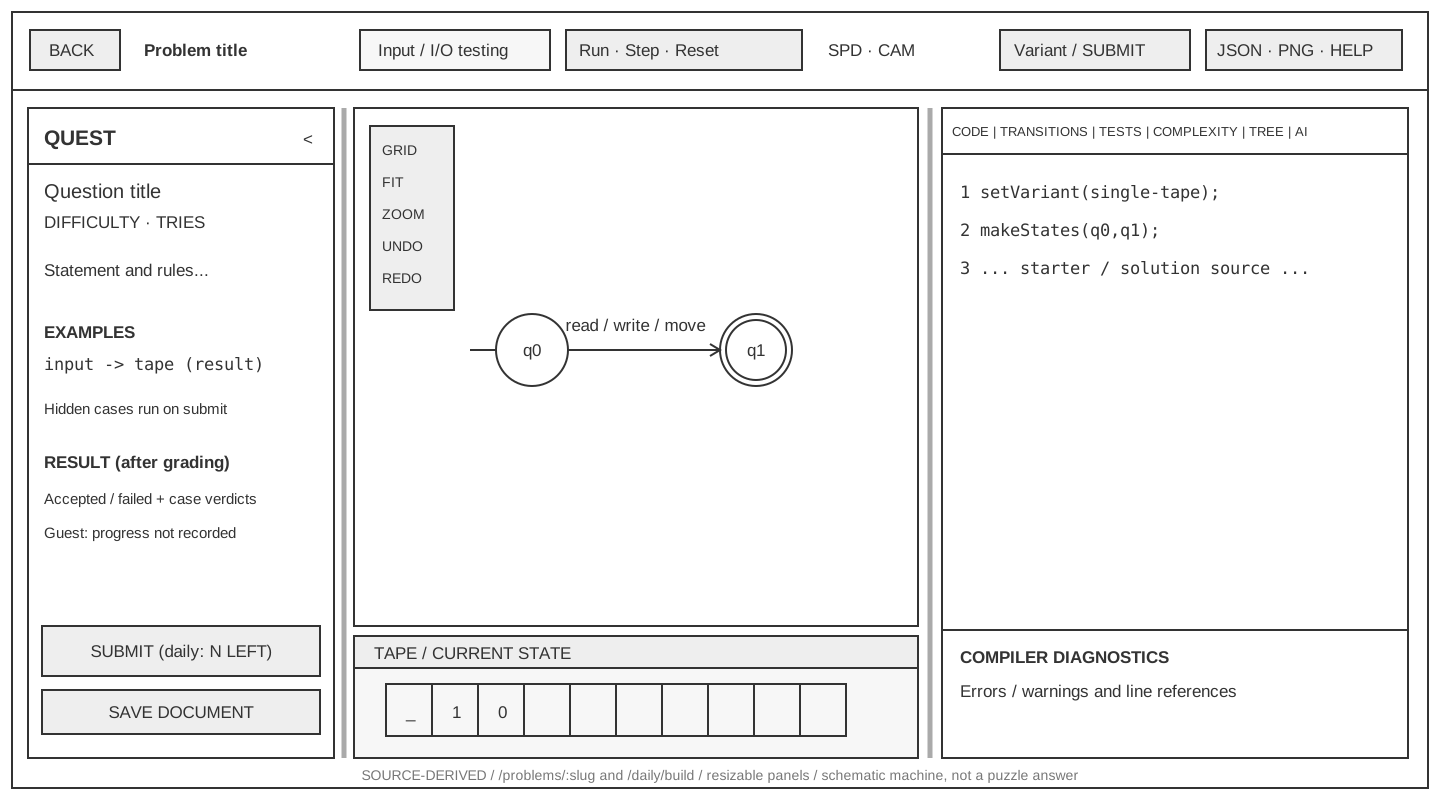
/problems/:slug and /daily/build reuse the editor. A collapsible/resizable
QUEST panel sits left of the canvas, showing statement, examples, hidden
case count and server verdict. The tape stays below the canvas; the existing
tabbed inspector remains on the right. SAVE creates a solution document rather
than replacing the question.
Daily mode labels QUEST submissions with attempts remaining and locks them when exhausted. Local tests remain usable without spending graded answers. The sheet compares catalog/daily behavior; it is not a reference solution.
Open full-size quest editor wireframe
Daily Puzzle and Browser History
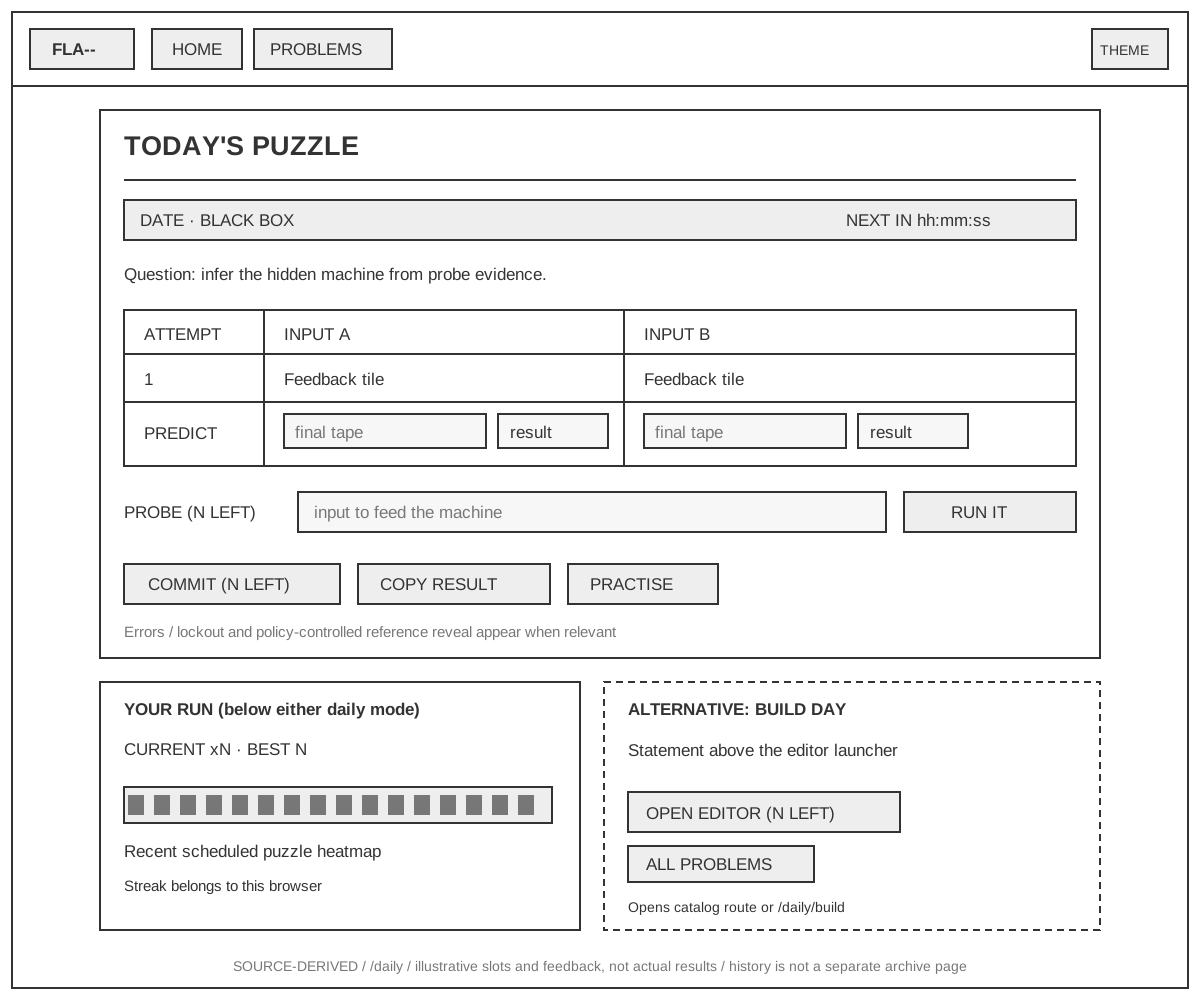
/daily shows date, puzzle kind, server rollover countdown and statement.
Black-box mode places attempt feedback and editable tape/result predictions
in one board. Probe input and RUN IT sit below it, followed by COMMIT,
COPY RESULT and PRACTISE. Reserved prediction inputs cannot be probed.
Solved/locked states remove answer entry; lockout may show the reference
according to reveal policy.
The build launcher is an alternative to that board. OPEN EDITOR navigates
to the catalog problem or /daily/build. YOUR RUN appears below either mode
with current/best streak and a recent-history heatmap tied to browser identity.
Archive endpoints exist, but there is no separate archive-page route in this
source baseline; no such screen is invented here.
Open full-size daily wireframes
Daily Administration
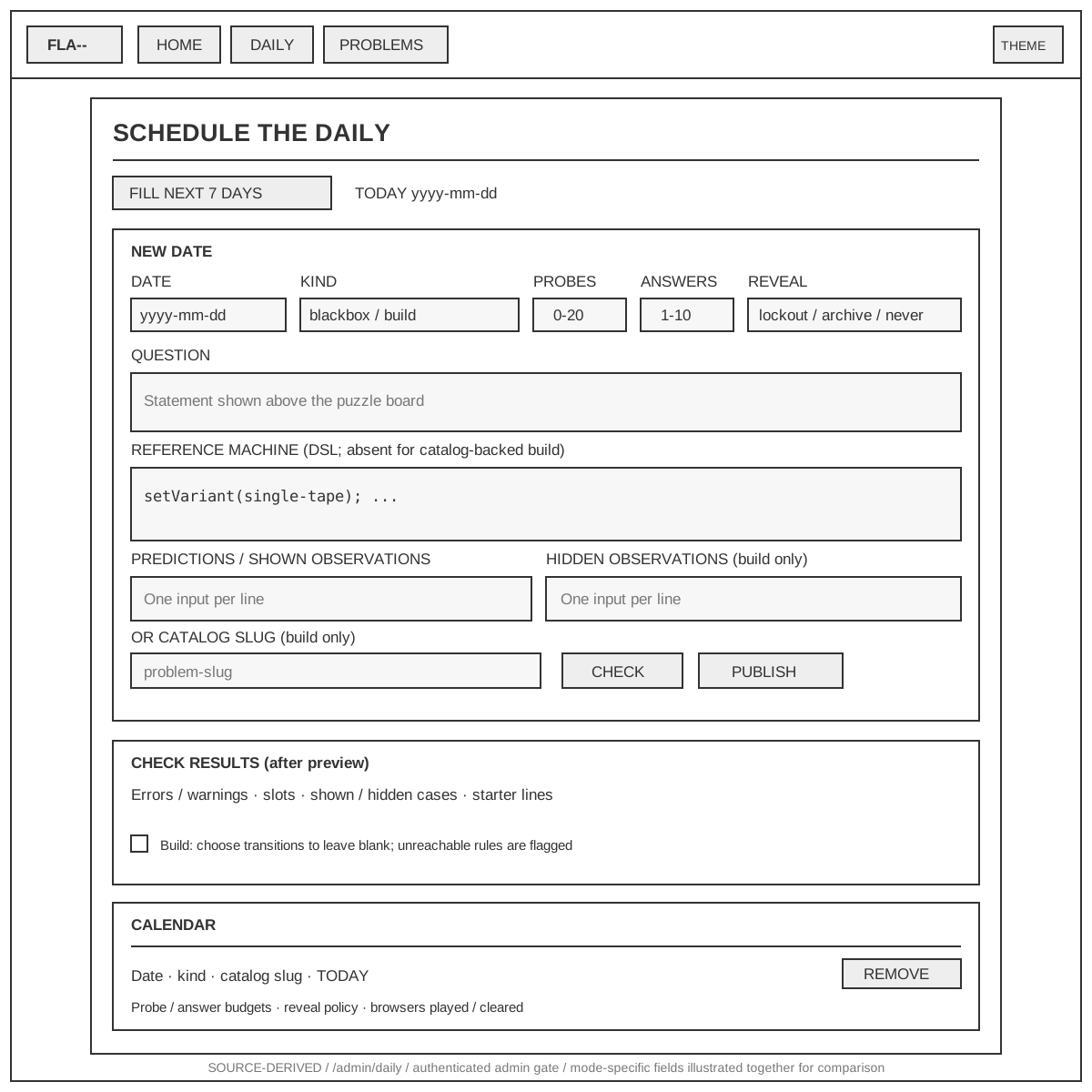
/admin/daily gates on authenticated admin access. The scrolling page contains
FILL NEXT 7 DAYS, a date/kind/budget/reveal form, question and reference inputs,
CHECK/PUBLISH actions, preview results and CALENDAR rows with REMOVE.
Build mode exposes hidden observations, catalog slug and preview transition
blank selection; black-box mode uses prediction inputs and permits probes.
Mode-specific fields are shown together for comparison, not all enabled at
once. CHECK does not persist a schedule.
Open full-size admin scheduler wireframe
Groq AI Inspector and Key Settings
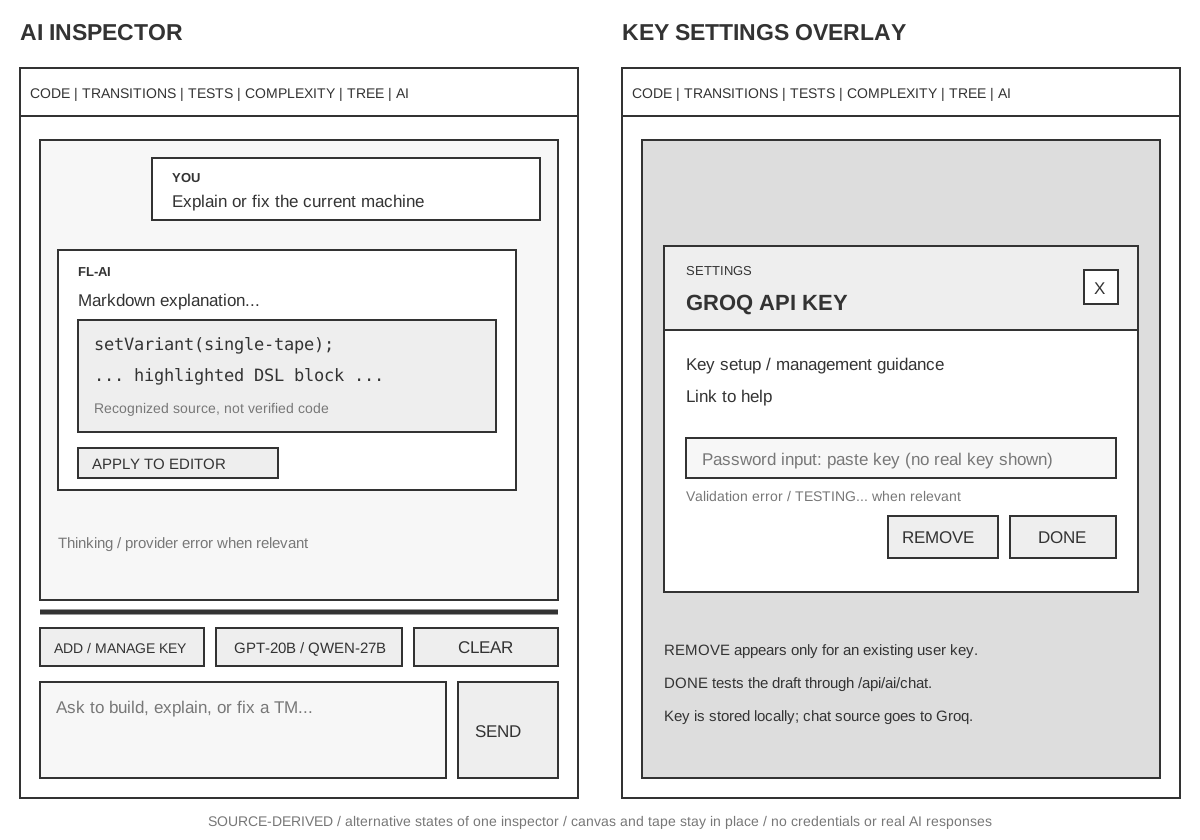
AI is another tab of the same inspector, not a new standalone page. Conversation messages and highlighted DSL blocks occupy the scrollable upper area; recognized code offers explicit APPLY TO EDITOR. A draggable divider separates it from key/model/clear controls and the message composer. The model selector labels are GPT-20B and QWEN-27B.
ADD KEY/MANAGE KEY opens an overlay inside the AI panel with a masked input,
close control, DONE and (for an existing key) REMOVE. DONE tests the draft key
through /api/ai/chat before saving it in local storage. Chat requests send
current source and recent messages through that proxy to Groq. The wireframe
contains no real key, real provider response, or claimed validated solution.
See the Groq API contract and
third-party service inventory.